




How to Clear an SD Card on Different Devices?
 Aug 13, 2024|
Part 1: Why Should We Clear an SD Card?
There can be plenty of motivation behind why you need to erase the SD card. In any case, we have sorted out reasons why you might need to get it done.
To reuse the SD card, we want to have more space, and accordingly, cleaning the SD card is one way to do it.
Plenty of times, the SD card might stall out with an error that you can never anticipate. Furthermore, going for the format to fix errors of the SD card is an appropriate choice.
The last reason could be giving the SD card to the one you know or somebody you don't. Regardless, you won't ever need to impart any of your files to anybody.
Part 2: How to Clear an SD Card on Android?
If you are wondering how to clear an SD card on an Android phone, this guide is for you. Kindly note that the choices may somewhat contrast due to your different Android gadgets.
Step 1: To begin, open the "Settings" application on your device.
Step 2: Open the "Storage" option to see the remaining storage in your gadget.
Step 3: Move down to the SD card options at the lower end. Tap the "Erase SD Card" option or "Format SD Card" according to the accessibility of the choice.
Step 4: Confirm your activities and go on by tapping the options needed, and this is how to reset an SD card through an Android gadget.
Part 3: How to Reset an SD Card on Camera?
If you are searching for how to wipe an SD card on the camera, the most effective method is with your camera itself. We have listed here the best way how to clear an SD card on camera:
Step 1: Back up the documents on the SD card to your PC and completely charge your camera battery.
Step 2: Switch off the camera and insert your SD card into the camera cardholder.
Step 3: Go to Menu after turning on the camera.
Step 4: From the camera menu, select the Setup menu > Format.
Step 5: Stand by while the camera formats your card.
Step 6: After formatting, the SD card, switch off the camera, and that's how to clear a memory card.
Part 4: How to Wipe an SD Card Windows 10/11
Fix 1: Clean an SD card in Windows Explorer
One of the answers to how to erase SD card is to use Windows Explorer. That can be the simplest way and time-saving. That is how to clean SD card through this technique.
Step 1: Connect your SD card with the PC to get going.
Step 2: Either double tap on "This PC" or press the Win + E keys together at this point to open Windows Explorer.
Step 3: See your SD card and all other drives under Removable Drive.
Step 4: Right-click your SD card and press the Format button on the screen. That's how to clear a micro SD card using Windows Explorer.
Fix 2: Erase SD Card in Disk Management
Step 1: First of all, open Disk Management on your Windows 10. For doing so, right-click the Start menu and pick "Disk Management" from the Menu.
Step 2: You can now play out the format on your SD card. You only need to select the partition on the SD card.
Step 3: Next, right-click your SD card and choose the "Format" choice.
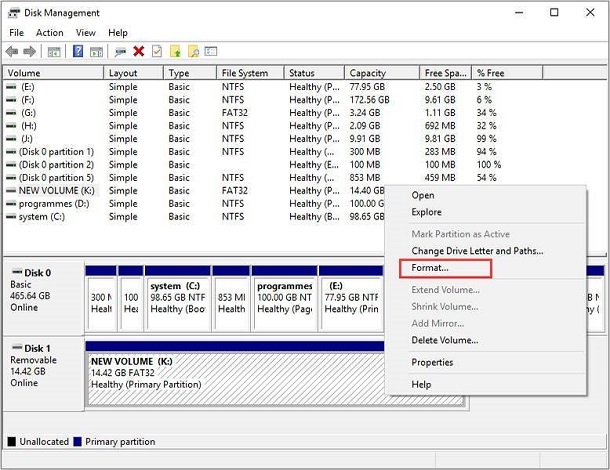
Step 4: Fill up the box that appears with all the information needed, such as partition label, file system, etc. Likewise, uncheck the little checkbox saying "Perform a Quick Format" and press OK.
Step 5: Again, press OK to affirm your activity, and that's how to clear an SD card Windows 10 immediately.
Fix 3: Wipe an SD Card in Command Prompt
First, connect your card to your PC and ensure it is readable. Then follow the steps underneath on how to clear an SD card on laptop:
Step 1: Search cmd on Windows 11/10, right-click on Command Prompt and pick run the program as an administrator.
Step 2: In the Window that opens, type "diskpart" and press "Enter" on your keyboard.
Step 3: See each of the accessible drives by typing list disk and pressing "Enter."
Step 4: Type disk and its number (for instance, disk 3) to select the SD card that needs a format.
Step 5: See each of the accessible volumes by typing list volume and pressing "Enter."
Step 6: Type select volume and its number (for instance, volume 2) and click the "Enter" key.
Step 7: Enter design fs=ntfs (or design fs=exfat) to let cmd format your card with NTFS or exFAT.
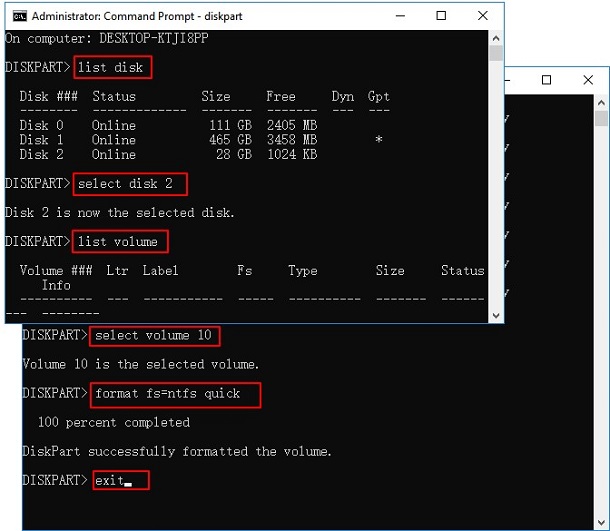
Then, at that point, you can close the program when DiskPart says it has effectively formatted the volume.
Part 5: How to Erase an SD Card on Mac?
Step 1: Connect your Mac and SD card and open the Disk Utility application on your Mac. You will see the First Aid tab by default when the Window opens.
Step 2: From the left pane, select the SD card and change it to the Erase tab.
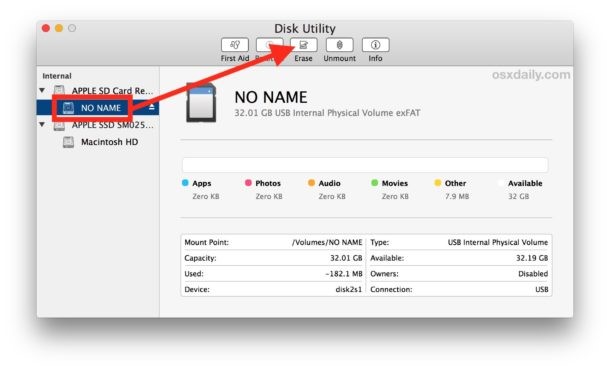
Step 3: Now, you should give a name to the card and pick the appropriate file format system. Mostly the best configuration is exFAT as Windows, and macOS supports it. Then, at that point, click on the Erase button and let the Disk Utility follow through with the job, and that's an answer to how to clear an SD card on Mac.